Everything in LedgersLab, module by module
Seventeen modules on one double-entry ledger, with Fusion AI on every plan. Each section below follows a chapter of the user guide, so what you read here is what you get.
- 17 modules, one ledger
- 50+ reports
- Fusion AI on every plan
- 3 months free
An assistant that reads your books and asks before it acts
Fusion AI sits in a docked panel on every page. It answers from your own data, drafts documents for you to confirm, and never writes to the ledger on its own.
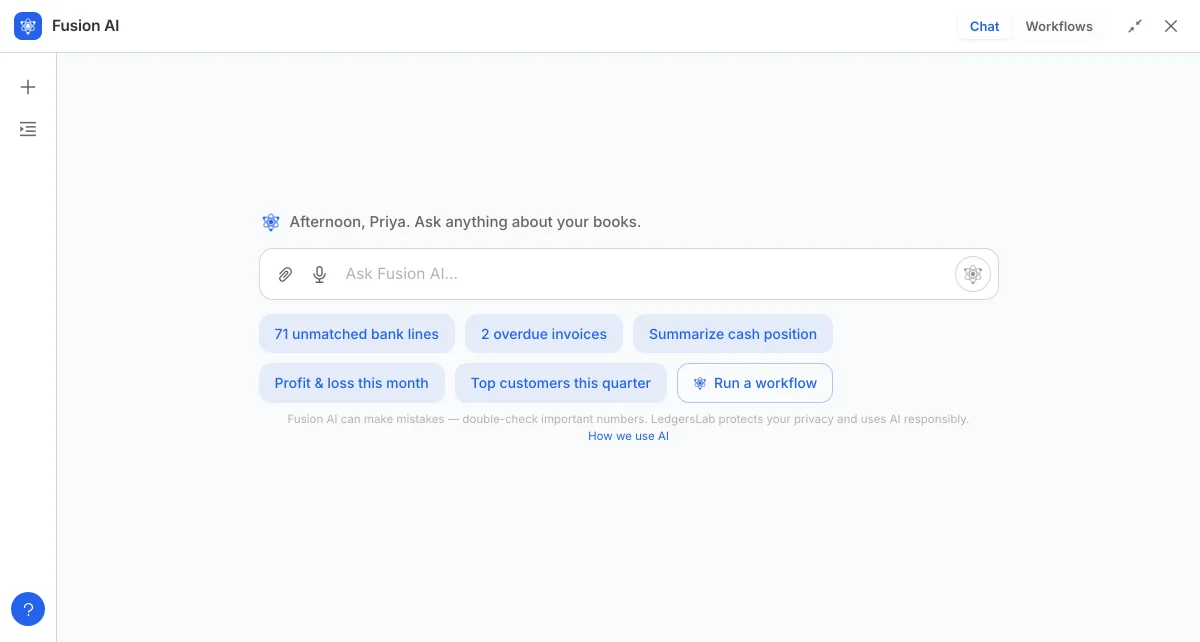
Ask in plain language
Balances, any document with filters in plain words, the financial reports as tables, and explanations such as why travel doubled in March. Suggestion chips come from your live data: overdue invoices, unmatched bank lines, cash position.
Reports in context
Every report page has Ask a question, which opens the assistant with that report already loaded. Answers link back to the full report.
Actions behind a confirmation card
Create customers, vendors, items and accounts; draft invoices, bills, expenses, journals, budgets, adjustments and HR records; send emails and follow-ups; categorise bank lines. Every proposal shows exactly what will change, and nothing happens until you click Confirm.
Every proposal is on the record
Each proposal gets a number in Fusion AI → Proposals with what was asked, what the assistant looked at, why it proposed the action and, once run, the debit and credit it posted. Decide there later if you closed the chat.
Reads receipts and bills
Attach a PNG, JPEG or PDF and the assistant reads the vendor, date, lines, tax and total into an expense or bill for you to confirm. The same extraction powers Scan receipt to prefill on the bill and expense forms.
Voice input in your language
Dictate with automatic language detection; the transcript lands in the message box for you to check before sending.
Workflows
Multi-step analyses such as a 13-week cash forecast or a close-risk scan are planned as tasks, run in the background and written up as a report. Any write a workflow wants to make becomes a proposal, and a workflow can run on a schedule.
Works as you, and keeps banking private
The assistant can only read and propose what your role allows. Bank feed categorisation runs entirely inside LedgersLab; bank transaction data is never sent to an external model.
One frame for every module
Learn the workspace once and every module, from Sales to HRMS, works the same way: the same lists, the same record pages, the same forms.
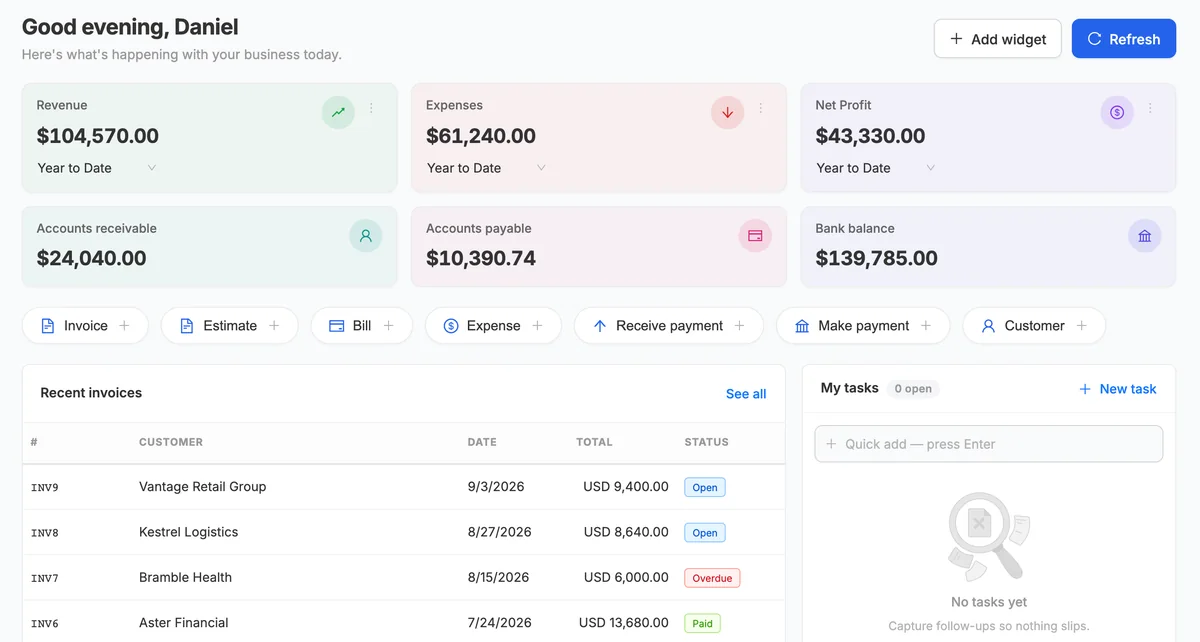
A card per module
The Workspace is a grid of the modules you can access. Inside one, the left rail lists only that module’s pages and opens on a live Overview: headline metrics, a chart with fiscal presets, quick actions and insights.
Dashboard KPIs straight from the ledger
Revenue, expenses and net profit widgets with seventeen period presets, each opening the Profit & Loss for that period, plus receivables, payables and bank balance tiles that drill into their reports. Add a widget for any P&L line.
Command palette and shortcuts
⌘K finds pages, actions and settings with forgiving matching; / focuses global search across customers, invoices, bills, items and employees; ? lists every shortcut.
Quick create from anywhere
The + Create menu opens a new invoice, estimate, bill, expense, payment, customer, vendor or item in place, without leaving the page you are on.
Lists that behave the same everywhere
Status tabs with counts, search, filters as removable chips, group by, a column chooser remembered per list, CSV export, board view, bulk actions and sorting.
Record pages with the full story
A header card, the primary action for the record’s status, tabs for the document, its Journal Entries and Approvals, attachments up to 10 MB, a lifecycle timeline drawn from the audit log, and an Activities thread for notes, messages and scheduled follow-ups.
My tasks and a getting-started card
A personal to-do list with priorities, due dates and assignees, and a six-step setup checklist that ticks itself off.
Light, dark, and on a phone
A theme toggle on every page. Below tablet width the rail becomes a menu and tables scroll inside their container. A companion mobile app covers expenses and receipts, approvals, clocking attendance and key figures.
Read the guide: Chapter 2 · The Workspace and finding your way around
From estimate to cash, with the ledger posted at every step
Estimates, sales orders, deliveries, invoices, receipts, credit notes and payments, each with a defined status flow and a Journal Entries tab showing what it posted.
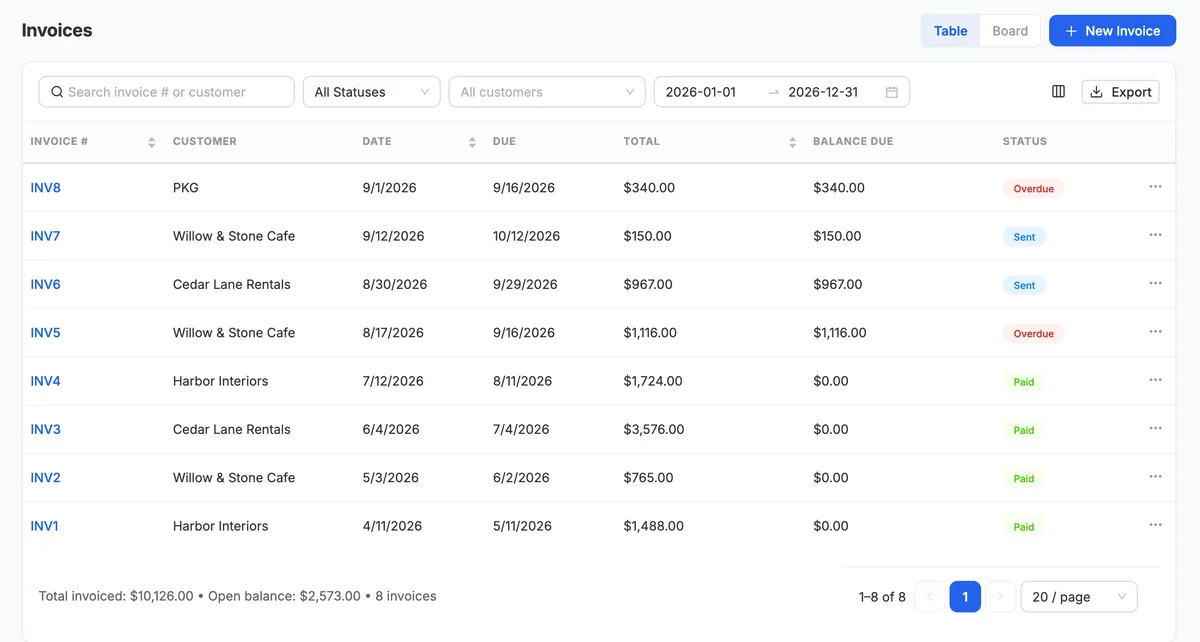
Invoices laid out like the paper
Payment terms set the due date, the customer’s currency comes with an exchange rate, lines carry tax, discount, unit and analytic dimensions, and billable expenses and bill items are pulled in from the customer’s history.
Manage invoice
Per-invoice control of header fields and table columns, shipping and handling, a discount before or after tax, a requested deposit, the PDF template, custom fields and Send later scheduling.
Payment schedules
Split an invoice into instalments with 50/50, equal thirds, 30/40/30 or your own rows; the invoice tracks each instalment as Paid, Partial, Overdue or Pending.
Recurring invoices
Templates with frequency, end date or count, auto-publish and auto-send. Generate now, Skip, Stop and Resume, with every generated invoice and every run listed.
Estimates, orders and deliveries
Estimates move Draft → Sent → Approved → Converted. Sales orders confirm the commitment, record part shipments from a chosen warehouse, and convert to invoices for what has shipped; a confirmed order can reserve its stock so no other sale is promised the same units.
Receipts for cash sales
A single document that posts the sale and the deposit together when closed.
Payments received
One customer payment allocated across several invoices with Pay full, in a foreign currency if needed; deleting a payment reopens the invoices it settled.
Credit notes
Raise a credit against an invoice, return items to stock at the cost they left at, then apply the credit to open invoices or refund it from a bank account.
Payment links, follow-ups and write-offs
Share a secure payment link for one invoice, send a follow-up reminder now or let automated follow-ups run, and write off bad debt to the expense account you choose.
In the module: Overview · Invoices · Recurring · Estimates · Sales Orders · Deliveries · Receipts · Credit Notes · Payments Received · Reports
Customers and vendors with everything a document needs
Currency, payment terms, tax treatment, addresses and default templates travel from the contact onto every invoice, estimate, bill and payment.
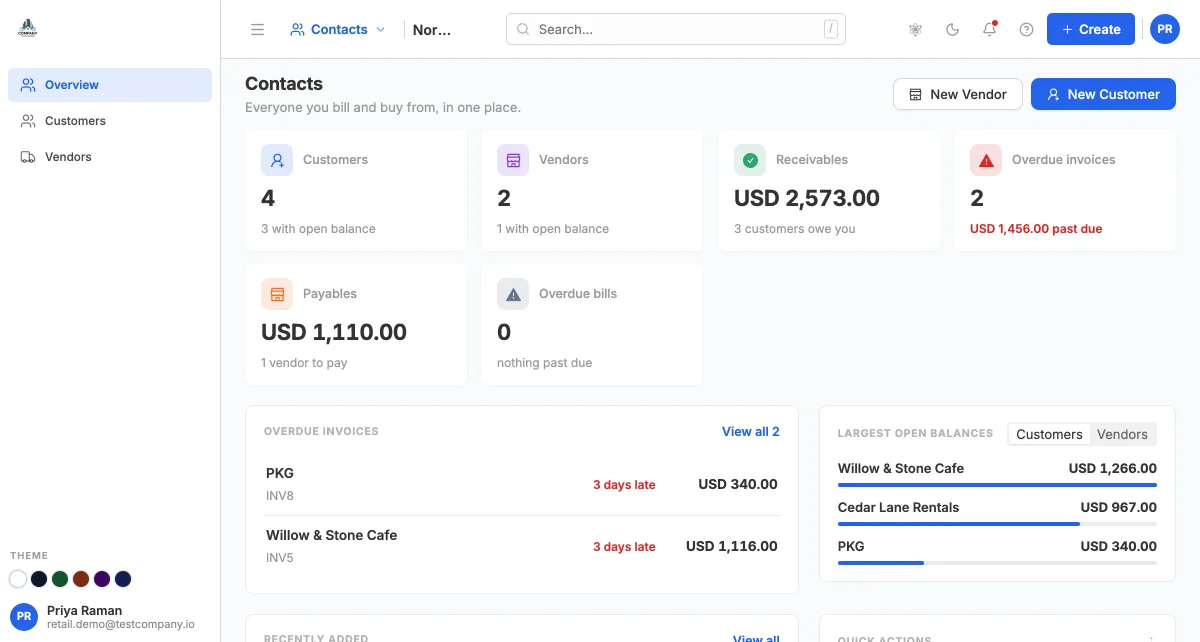
A sectioned record
Name and contact, billing and shipping addresses, contact persons, extra site addresses, custom fields, a default PDF template per document type, and payments and tax.
Portal access in one switch
Email a customer their own login to the Customer Portal; each contact person can have one too. Resend or revoke from the record.
Statements on demand
Opening balance, every transaction with running balance and the closing balance for any range, as a PDF or emailed with the PDF attached.
Import from a CSV
Download the template, fill it in, and preview every row as OK or Skip with the reason before anything is created.
An overview page per contact
Receivables or payables, unused credits and opening balance, with tabs for every invoice, payment, credit note, estimate and order.
Vendors ready for compliance
Bank details for electronic payment and Track for 1099 for US contractors, which the Form 1099 reports pick up.
Credit limits and numbering
Optional customer and vendor numbers, and credit limits that warn or restrict when an invoice would exceed them.
In the module: Overview · Customers · Vendors
Read the guide: Chapter 4 · Contacts — customers and vendors
Order, receive, bill and pay, with the paper trail intact
Purchase orders, goods receipts, bills, recurring bills, vendor credits and payments made, on the same draft-then-post rhythm as sales.
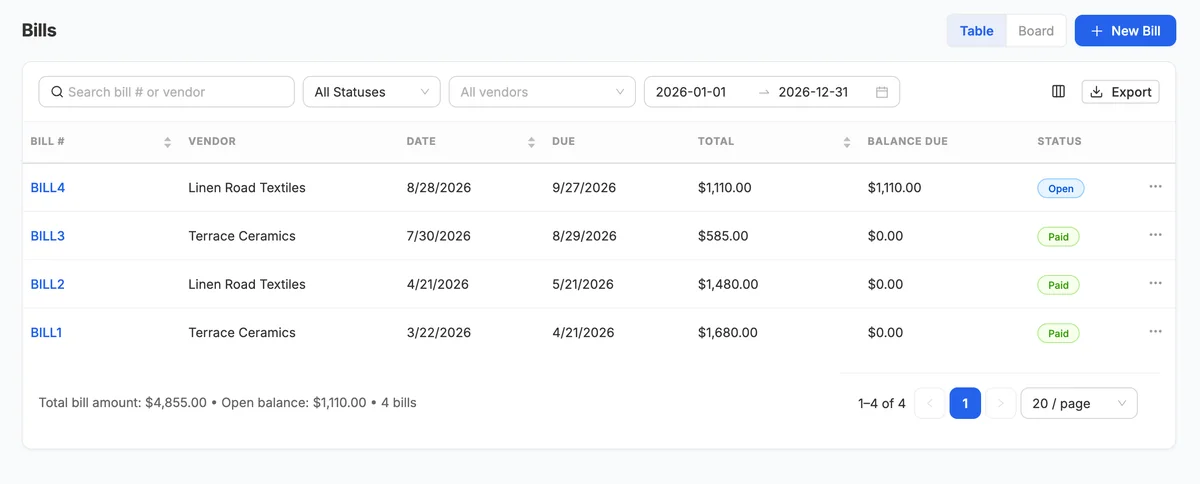
Purchase orders to goods receipts
Open a PO, send it, then receive in parts against it with a receipt date, warehouse and unit cost. Scan barcodes to fill the receipt line by line.
Drop-ship from the order
Mark a sales order line as shipped by the supplier: confirming it raises a purchase order to the preferred supplier, addressed to the customer; marking it shipped delivers the sale with no stock movement and the bill goes to cost of goods sold.
Convert to bill
A bill pre-filled with what has been received and not yet billed, linked back to the PO; convert again for the remainder, or start from the bill and add lines from open POs.
Bills with category and item lines
Cost lines charged straight to an account and item lines that move stock, a Draft/Open switch, tax-compliance fields such as reverse charge and place of supply, and an internal memo.
Scan receipt to prefill
Upload the vendor’s invoice as a photo or PDF and the date, due date, reference and amounts are read in with the vendor suggested.
Landed costs
Spread freight, duty or handling from a bill or expense across the items on a bill, by value or by quantity, so each item carries its true cost. Removing an allocation rolls the costs back.
Recurring bills
Templates that generate bills on a schedule, auto-opened or saved as drafts, with the same generate, skip, stop and resume controls as recurring invoices.
Vendor credits and refunds
A credit against a bill, items returned to the vendor at original cost, then applied to bills or refunded into a bank account.
Payments made, and assets from bills
Settle one or many bills in one payment, in the vendor’s currency. A bill line charged to a fixed-asset account offers Create Asset once the bill is open.
In the module: Overview · Bills · Recurring · Vendor Credits · Purchase Orders · Payments Made · Reports
Every cost paid on the spot, split, tagged and approved
Card purchases, cash spend, travel, meals and mileage that never go through a vendor bill.
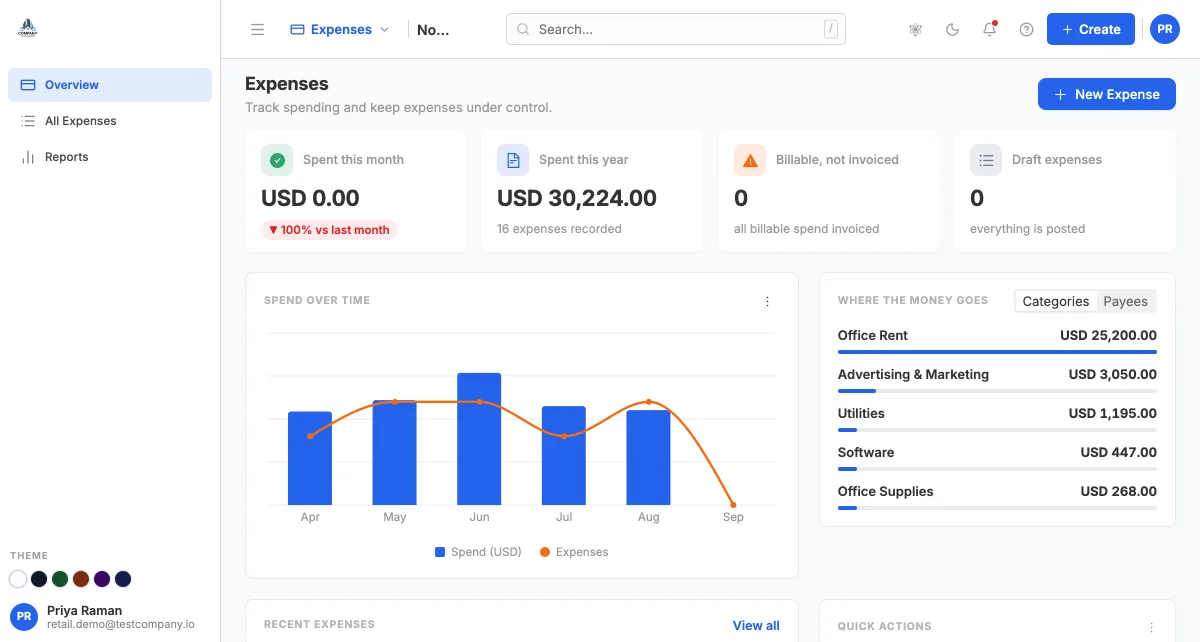
Scan receipt to prefill
Upload a photo or PDF and the date, currency, description and amounts are filled in with the payee suggested.
Split across categories
One receipt across several expense accounts, each line with tax and analytic dimensions; the total adds itself up.
Mileage
Manual distance or odometer start and end readings, times your rate per mile or kilometre, written to your mileage account.
Billable to a customer
Tick Billable, choose the customer, and the expense waits under Add billable expense on their next invoice. The Overview shows what is billable and not yet invoiced.
Owner-paid expenses
Mark an expense as paid personally and the credit goes to the owner’s account instead of a bank account.
Draft, approve, publish
Publish posts the expense; if an approval rule matches, it is submitted instead and posts once approved. Unpublish reverses the postings for a correction.
Where the money goes
Spend over time, spend by category, and an Expense details report filterable by account, payee and status.
In the module: Overview · All Expenses · Reports
Feed it, categorise it, match it, reconcile it
Bank, cash and credit-card accounts with live feeds or imported statements, categorisation that learns from you, and a reconciliation that proves the books agree with the bank.
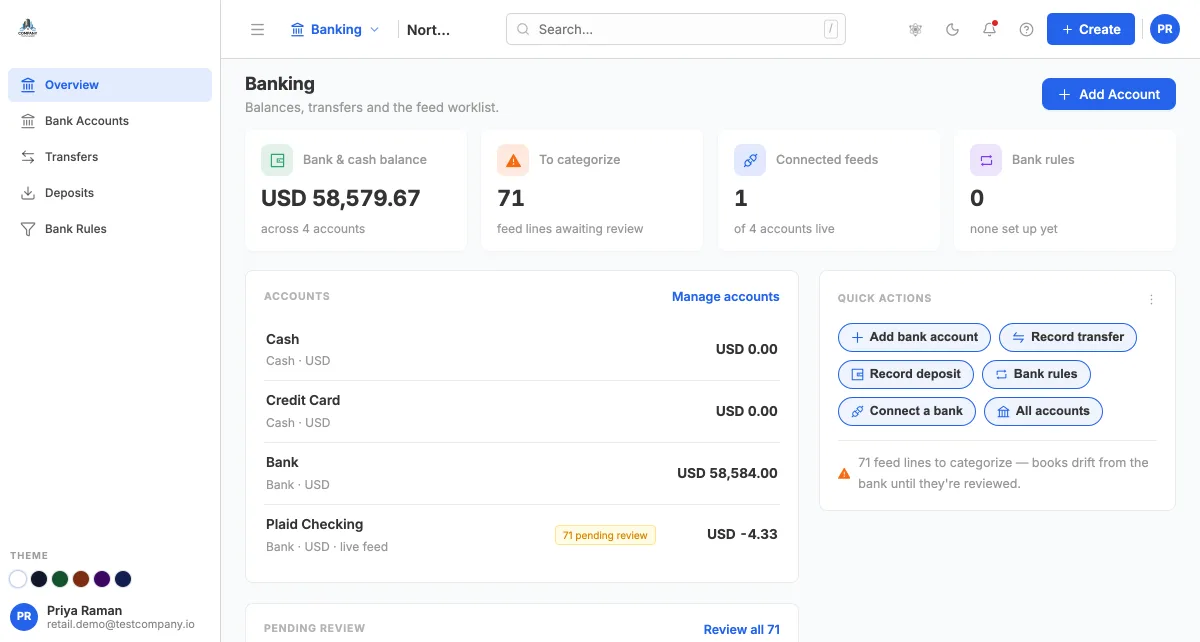
Live feeds through Plaid
Connect a bank and each account is created in the chart of accounts with transactions flowing in. Sync all, pause, resume or disconnect; the history stays.
Import any statement
PDF, Excel, CSV, MT940 and CAMT.053, detected from the file, with column mapping for spreadsheets. Lines that already exist are skipped, so overlapping imports never duplicate.
Rule match and Suggested
Bank rules propose a category; LedgersLab also predicts one from how you booked similar lines before, with the reasoning on hover. Confirm inline with Post, or categorise in bulk.
Find match instead of duplicates
Link a bank line to a payment, bill payment or transfer already in your books. Perfect matches agree on amount and date; possible matches are listed too.
Bank rules in order
Conditions on description, payee or amount, restricted to an account or transaction type, assigning a category, payee and memo. The first matching rule wins.
Transfers and deposits
Transfers between your own accounts post immediately and match both feed lines. Deposits batch undeposited customer payments into the one line the bank shows.
Reconciliation on the ledger
Enter the statement’s ending balance and date, tick what cleared, or upload an OFX, QFX, CSV, MT940 or CAMT.053 statement to tick entries automatically. Finishing locks the period and protects every cleared entry until you undo it.
Computed in-house
Suggestions and rules are calculated from your own history. Bank transaction data is never sent to an outside AI service.
In the module: Overview · Bank Accounts · Transfers · Deposits · Bank Rules
A real general ledger, numbered end to end
Every document posts its own balanced entry, every entry gets a journal number, and the controls accountants expect are one page away.
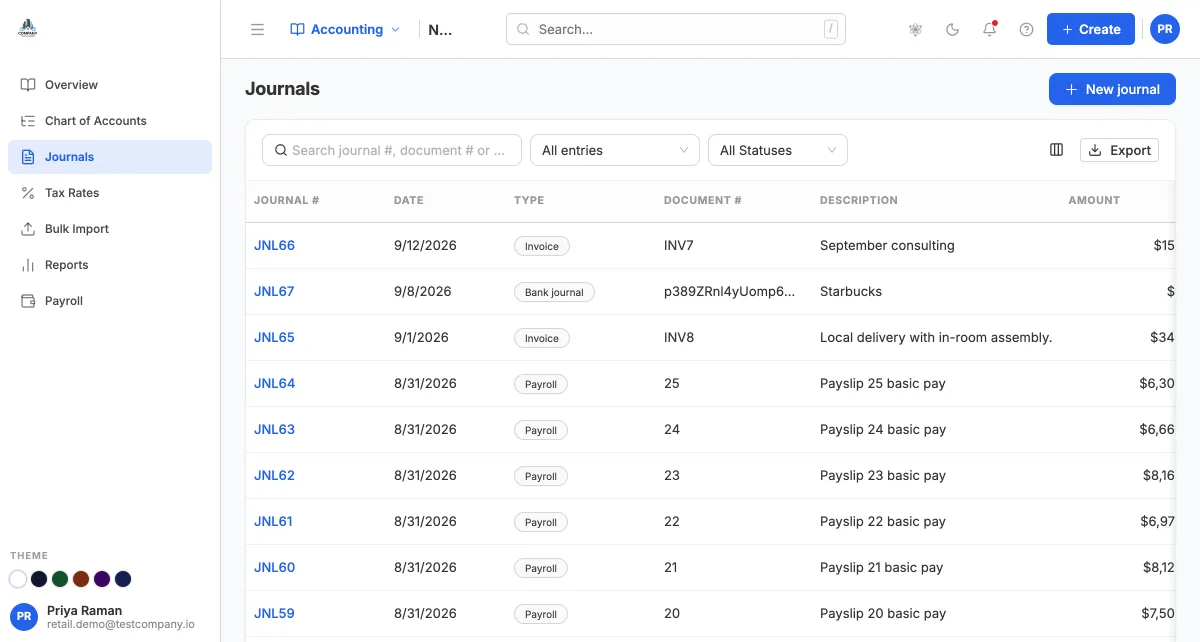
Chart of accounts with types and codes
Assets, liabilities, equity, income and expenses in sub-accounts with optional required and unique codes, a cash-flow category per account and a default fixed-asset category.
Documents post themselves
Deliver an invoice, open a bill, publish an expense or categorise a bank line and the entry is posted with the document type and number on it. The Journal Entries tab on every record shows exactly what went where.
A journal number on everything
Invoice entries, payments, payroll runs, bank journals and manual journals share one JNL sequence and are all listed under Journals; voiding records a Reversed entry under the same number.
Manual journals that must balance
Debits and credits with dimensions and a foreign-currency rate; the footer refuses to save while the difference is not zero. Drafts go through approval, and Unpublish reverses a posted entry.
Tax rates
Compound and non-recoverable rates applied on items and lines, with a Sales tax liability summary of what you owe.
Bulk import of history
An Excel template whose dropdowns come from your own accounts, tax rates and contacts. Preview validates every row; only Run Import writes.
Period locking and year-end close
Close a period for everything or for sales, purchases and banking separately, with exception windows, then post the year-end close into retained earnings.
Default accounts, nothing silent
Every posting role, from Accounts Receivable to Manufacturing Costs Applied, is bound to an account you choose. A posting with an unset role stops and tells you where to fix it.
In the module: Overview · Chart of Accounts · Journals · Tax Rates · Bulk Import · Reports
More than fifty reports, each where its module lives
There is no separate Reports module. Every module’s rail ends in Reports, which opens the full catalogue with that module’s reports first.
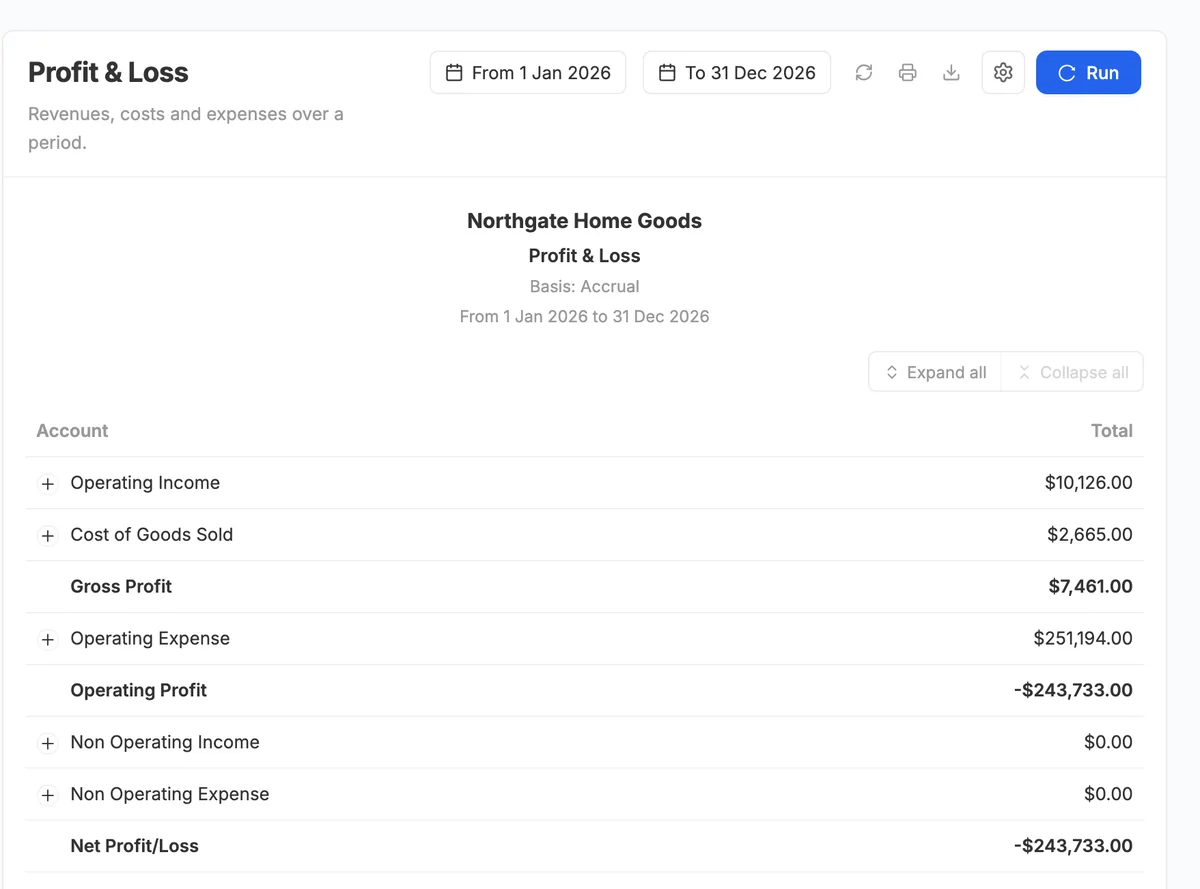
Financial statements that compare
Profit & Loss, Balance Sheet, Cash Flow (indirect or direct), Trial Balance and Movement of Equity, on a cash or accrual basis, split by day, week, month, quarter or year, compared with the previous period, previous year, year to date or a custom period with $ and % change.
Ledgers and detail
General Ledger with running balances, Detailed General Ledger, Journal with a Balance Check badge, Account Transactions and Account Type Summary.
Receivables and payables
Balance summaries, transactions per contact, and aging with the bucket size and count you choose.
Sales, purchases and tax
Sales and purchases by item and by contact, every document-details report, Sales Tax Liability, and a three-step Form 1099-MISC and 1099-NEC wizard.
Inventory, manufacturing and fixed assets
Valuation, stock summary, aging, turnover and ABC classification; production summary and cost, material consumption and availability, work in progress and work centre load; asset register, depreciation, disposals and age analysis.
Business Performance
A ratio dashboard with revenue, gross profit, net income and equity against the prior period, the biggest movers, and liquidity, profitability, leverage, efficiency and coverage groups.
Custom reports and builders
Root reports and country variants with your own lines, expressions and columns; an Executive Report Builder for board packs; an Attestation Report Builder; and a designed, themeable Annual Report rendered to PDF on the server.
Every report, print-ready
Each report opens on a paper with the organisation, basis and period in its heading. Print, export CSV or Excel, filter by account, branch and dimension, star favourites, and Ask a question to open Fusion AI with the report in context.
Stock that agrees with the ledger
Items with variants and kits, bins and putaway, stock counts, movements, transfers and reorder rules, with the cost released on every sale worked out by AVCO or FIFO.
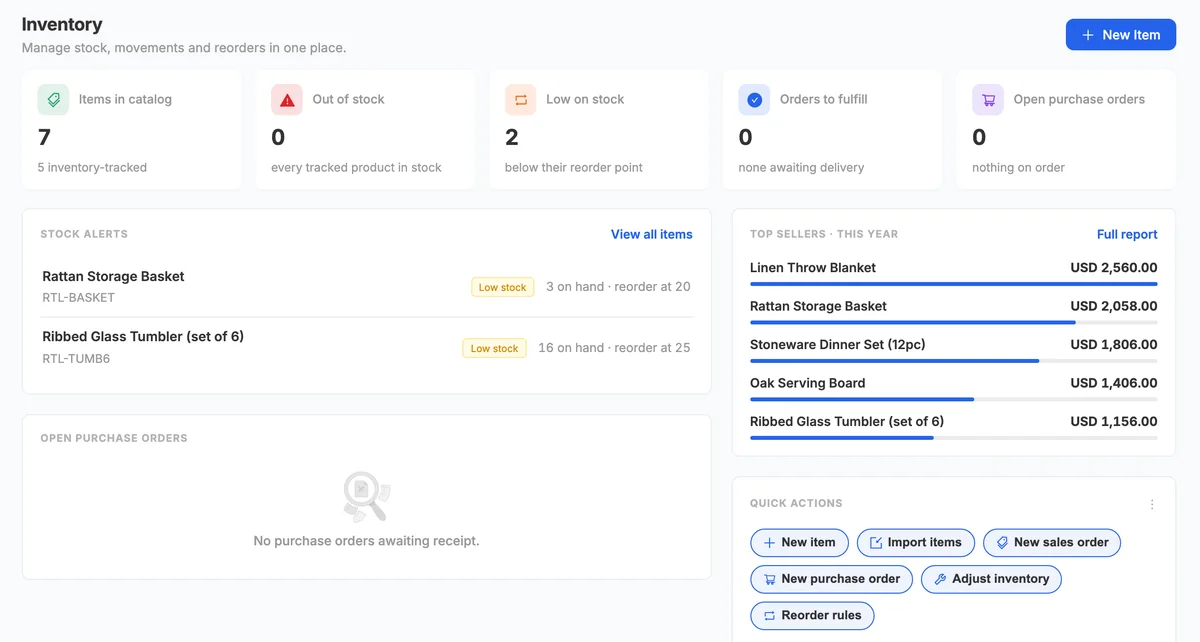
Four kinds of item
Inventory, non-inventory, service and kit items with SKU, barcode, batch or serial tracking, a default unit and a purchase unit in the same family.
Variants and kits
Size, Colour and other attributes generate one variant per combination, each with its own SKU, price and stock; a kit sells as one line and takes its components out of stock at their cost.
Bins and putaway
Shelves inside a warehouse with a pick order; arrivals follow putaway rules or wait in a receiving bin until put away; stock on hold is on hand but not for sale.
Stock counts
A count sheet per warehouse or shelf as of a date, counted on screen or by scanning, with the differences posted as inventory adjustments.
Barcodes and labels
One scan box on receipts, counts, pick lists, bin moves and adjustments that reads item barcodes, serial numbers and bin codes, and printable Code 128 labels for bins and items.
Categories wire the accounts
Each category carries the income, expense and inventory accounts and the costing method, AVCO or FIFO, that every item in it inherits.
A stock ledger you can read
Item Movements lists every event that changed stock with its source document, warehouse, direction, base quantity and unit cost.
Adjustments with a reason
Stock count, damaged, lost, expired, theft, sample or found, posted against the account you choose, with the cost defaulting to the current average.
Warehouse transfers
Draft, in transit, transferred: stock leaves the source on Initiate and arrives on Mark transferred.
Quality inspection
Templates of parameters, a number in a range, an expected text, a yes/no, made required on receipt, in process or before delivery per item or category; arrivals wait in the quality bin with their batch until accepted, a rejection quarantines the batch so no picker takes it, production and delivery wait for their inspection, and the reject rate by vendor feeds the supplier record.
Replenishment that looks ahead
A minimum and maximum per item and warehouse checked against the projected quantity, on hand, less what sales orders still owe and what work orders still need, plus what is on order or in production within the lead time, and a daily run that drafts a requisition per warehouse, or a work order for what you make, for your buyer or planner to approve, order and send.
Suppliers on the item
Each item lists who it is bought from, their code, lead time and minimum order; the preferred supplier plans the replenishment and pre-fills the purchase order.
Import and quick add
Items and barcodes from CSV with a preview, and a Quick add dialog whenever a scanned barcode or a typed name does not exist yet.
Units of measure
Buy by the case, sell by the each: categories of units with ratios and display rounding, converted to the base unit on every document.
In the module: Overview · Items · Item Movements · Adjustments · Stock Counts · Categories · Warehouse Transfers · Bin Moves · Batches & Serials · Replenishment · Reports
Bills of material, work orders and job cards, costed at actuals
Describe what a product is made of and how it is made, build it in parts, and let every movement post as an ordinary inventory transaction.
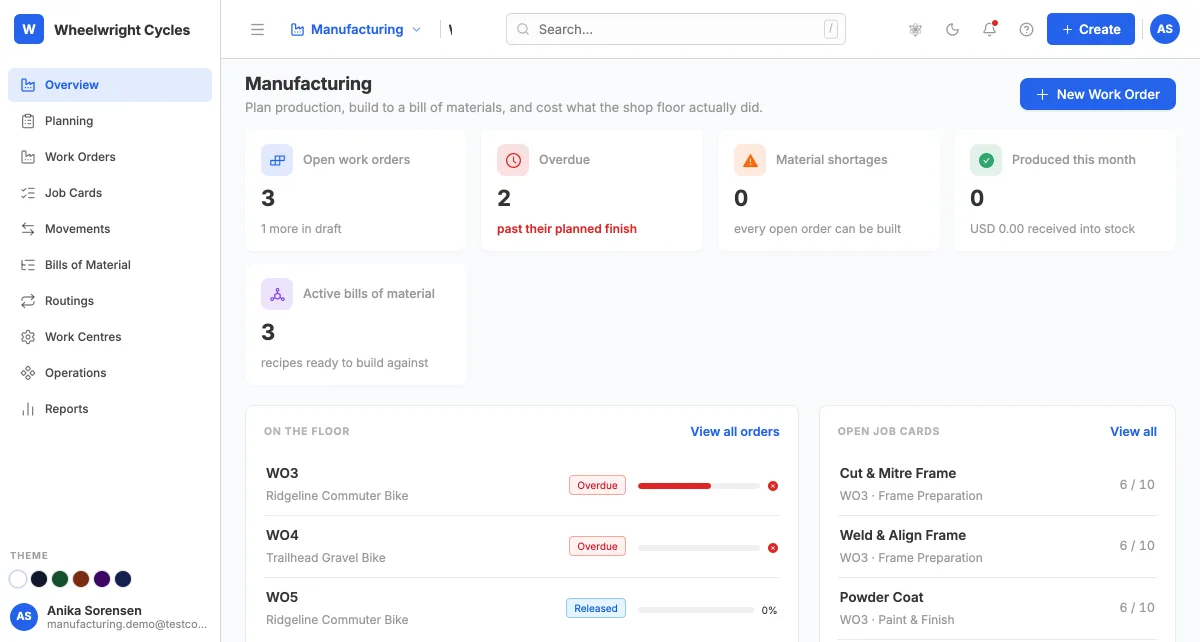
Work centres, operations and routings
Machines, cells and benches with labour, machine and overhead rates per hour, each one optionally the fixed asset it is; named steps with default times; routings that sequence them and are snapshotted onto each BOM.
Maintenance
Plans per machine or asset, every n days, or every n hours of use read from the job cards, and a daily run that drafts the preventive request for the assignee; a breakdown is a corrective request that takes the work centre down: no job card starts there until it is closed, and the hub shows the orders routed through it. Closing records downtime and cost on the asset’s maintenance log.
Lots and bins on the shop floor
Every production movement names its lots: pick the batch or serial units a build consumes, give finished goods a batch (named after the work order) or scan their serial numbers, and let the putaway rules shelve what lands. A build never takes stock a sales order holds or that sits in a quality-hold bin.
Planning on the projection
Released work orders promise their product and claim their components, so replenishment, sales-order holds and production plans all read the same projected stock; a plan nets its shortage against what is already on order or in production.
Subcontracting
A bill of materials made by a vendor from your components: issuing the order sends them to the vendor’s own warehouse, still your stock; the receipt consumes them there and brings the finished goods in at components plus the charge, with the journal to match; a make rule orders from the vendor instead of raising a work order.
Bills of material
Components per batch with scrap percentages and the warehouse to issue from, scrap and by-products with recovery rates, a costing basis, revisions and a default recipe per product.
Production planning
A plan explodes the BOMs for a build window, compares requirements with stock, shows what to buy, and raises one work order per product and sub-assembly.
Work orders
Release to the shop floor, stage material into work in progress, return what is unused, record production in parts as units come off the line, hold and resume, or unbuild finished goods.
Job cards
One card per routing operation with a start and stop clock or booked minutes and quantities, optionally against an HRMS employee. Time × rate is the conversion cost capitalised into the goods.
Movements you can reverse
Every stage, return, build and unbuild is a production entry with its lines and journal; reversing posts a dated contra entry and returns the stock.
Costed at actuals
Finished goods are received at components actually consumed plus conversion cost minus scrap recovery, so plan-versus-actual shows in the Production cost report instead of vanishing into item cost. Work in progress is reported, not hidden.
Nine manufacturing reports
Production summary and cost, material consumption and availability, scrap, work in progress, work centre load, finished goods production and BOM cost.
In the module: Overview · Planning · Work Orders · Job Cards · Movements · Bills of Material · Routings · Work Centres · Maintenance · Operations · Reports
A register that depreciates itself
Buy, enter, build, depreciate, repair, revalue and sell assets from one module, with the bills, invoices and journals made for you and the roll-forward your auditor asks for.
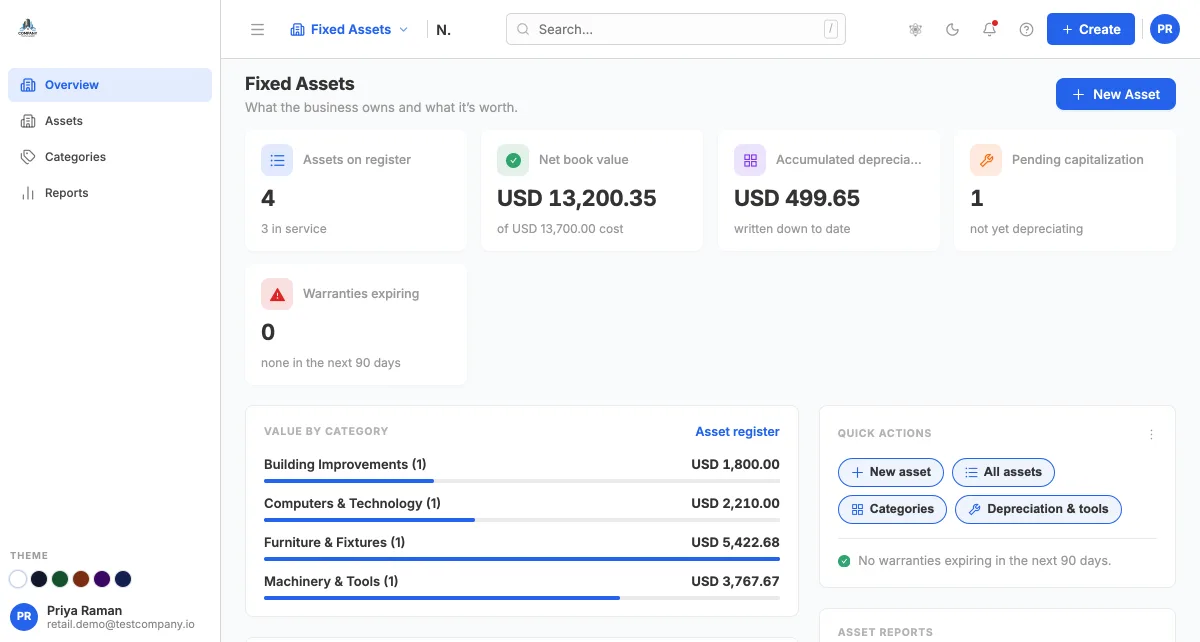
Categories carry the rules
Depreciation method, useful life, salvage percentage and the asset, accumulated depreciation, expense, gain and loss accounts, so registering an asset is mostly description, dates and cost.
Bought, already owned or built
Record a purchase with its vendor bill and payment in one form, enter assets you already own with the depreciation taken, or build an asset over time from bills, stock and labour collected in work in progress.
Several books per asset
Main, tax, IFRS and management schedules side by side: straight line with shifts, declining balance, written-down value, sum of years’ digits or a manual schedule, posted monthly, quarterly or yearly and charged by the day.
Depreciation posts itself
Planned entries post after each period ends. Catch up when you need entries now; a period is never posted twice, and an entry that can’t post is flagged on the asset with the reason.
Changes in service
Write an asset down or revalue it, change its life, shift or posting, pause and resume, split it into units, transfer it, and post repairs as an expense or add them to its cost with a longer life.
Disposals with the gain or loss booked
Sell on a sales invoice with tax, or scrap, donate, trade in, write off or record a loss, with the gain or loss booked; backdated disposals reverse later depreciation, and a write-off can be restored.
Reports for the audit file
Depreciation and balances by category, the register as of any date, depreciation by book, a depreciation ledger, asset activity, maintenance, disposals and age analysis.
In the module: Overview · Assets · Categories · Reports
Budget for the company or each department, and see it hold
A spreadsheet budget by account and period, approved before it counts, then tracked against actual and committed spending with drill-down.
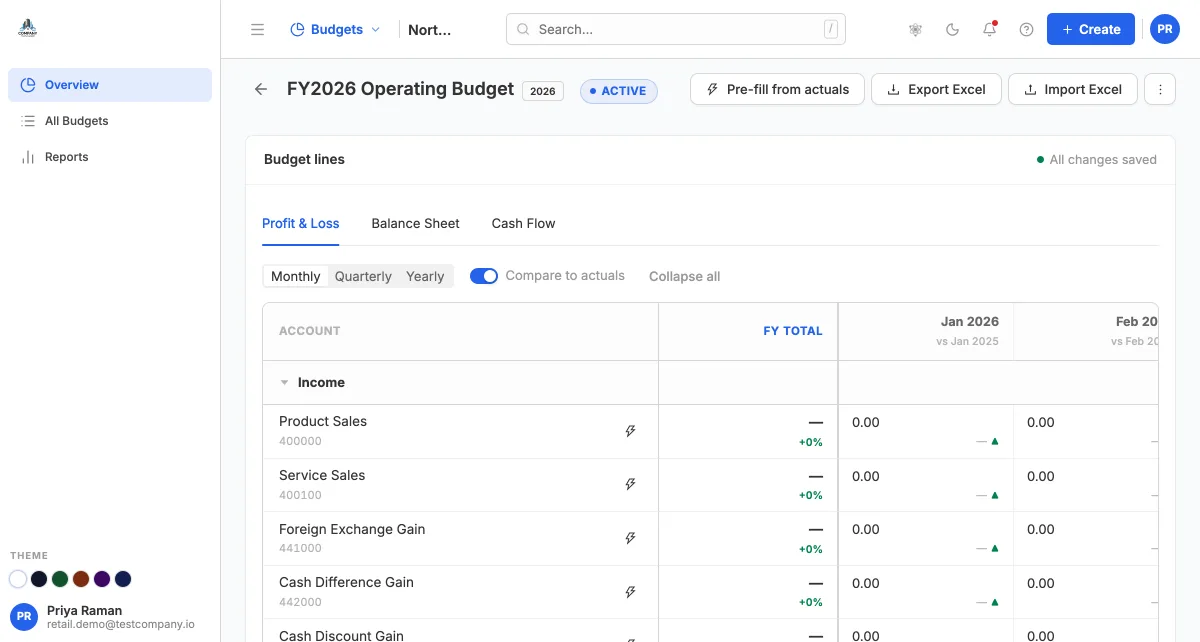
Company, department or project
Budget the whole company or one department, project or cost centre from your analytic dimensions; a parent covers its children.
A real spreadsheet
Profit & Loss, Balance Sheet and Cash Flow tabs; monthly, quarterly, half-yearly or yearly columns; paste from Excel; start from last year, spread a total or fill from an assumption.
Warn or stop before money is spent
Purchase orders, bills, expenses and journals are checked against the budget as they are saved: track only, warn, or stop with an override permission, against the period, the year to date or the whole budget. Alerts at 80% and 100%.
Approve, revise, close
Drafts go through your approval rules; an approved budget is read-only and in force; a revision keeps the approved version in force until it is approved itself.
Spent, committed, left
The overview shows budget and spending to date, money promised on open purchase orders and requisitions, what is left for the year and a year-end forecast.
Budget vs Actual
Every account to date or period by period, variances coloured by whether they are good, unbudgeted spending flagged, and drill-down to the ledger lines and open orders.
Excel round trip
Export the budget, edit in a spreadsheet, and import the filled workbook to update a draft in bulk.
In the module: Overview · All Budgets · Budget vs Actual · Compare Budgets
A second pair of eyes before anything posts
Approvals inside each module: what waits on you, what is stuck and with whom, and the rules behind them, on one page per module, plus everything waiting on you from the top bar.
Rules for invoices, bills, expenses, purchase orders, requisitions, journals and budgets
Managed on the Rules tab of the module the document belongs to. An optional amount band; when several rules match, the narrowest band applies.
Levels that wait for each other
One or more levels, each with approver users and/or roles. Level 2 sees the request only after level 1 approves.
Locked while pending
Submitting holds the document with a Pending approval badge; it posts automatically when approved and returns as a draft with the reason when rejected. Nobody can approve their own submission. Each list filters to what is pending approval.
Decide where the work is
Each module’s Approvals page lists its documents with number, party, amount and stage. Approve, reject with a required reason, or comment from there, from My approvals in the top bar, or from the document’s Approvals tab with its timeline.
See what is stuck
People who manage the rules see every pending request with the approvers it is waiting on, and fix its rule on the next tab.
Notified at the right level
Bell and email notifications when a request reaches you, reminders while it waits, and the outcome for the submitter.
Projects, tasks, time and meetings
Plan work on a board, log the hours against it and bill them, and schedule meetings against everyone’s real working hours.
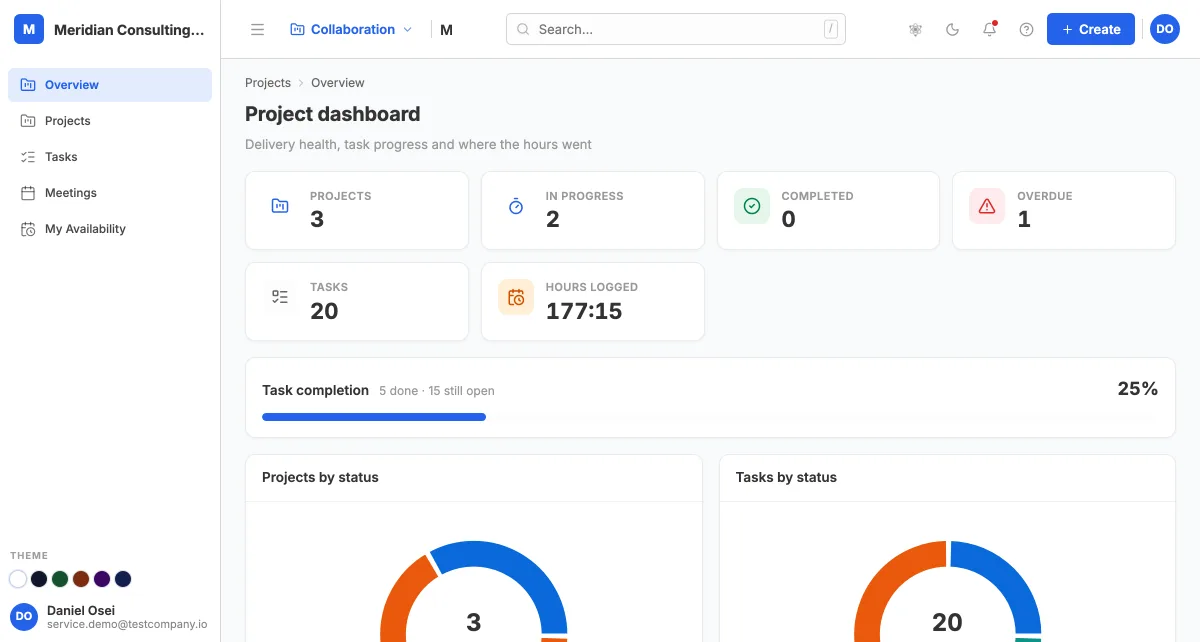
Projects with managers and members
Statuses from New to Completed, progress from tasks done, and a description everyone can see.
A board per project
A kanban by stage with your own pipeline; dragging a task into an end stage completes it.
Tasks across projects
One list of everything you can see, filtered by project, status and due date, with managers and assignees per task.
Timesheets and billable time
Log time by project, task and employee in a weekly grid; the hours also appear in HRMS attendance, and time on a billable project can be pulled onto the customer’s invoice.
Project chat
Messages, voice notes, and a meeting posted straight into the team’s calendar.
Meetings that check availability
Attendees, duration, location and agenda, with Check availability and Suggest times built from each person’s working hours and exceptions.
Project dashboard
Hours logged, projects and tasks by status, activity, hours by project and overdue tasks in one view.
In the module: Overview · Projects · Tasks · Meetings · My Availability
A ticket desk for customers and staff
Teams with their own pipelines, request types with their own numbering, SLA policies with first-response and resolution clocks, and a knowledge base agents search while they work.
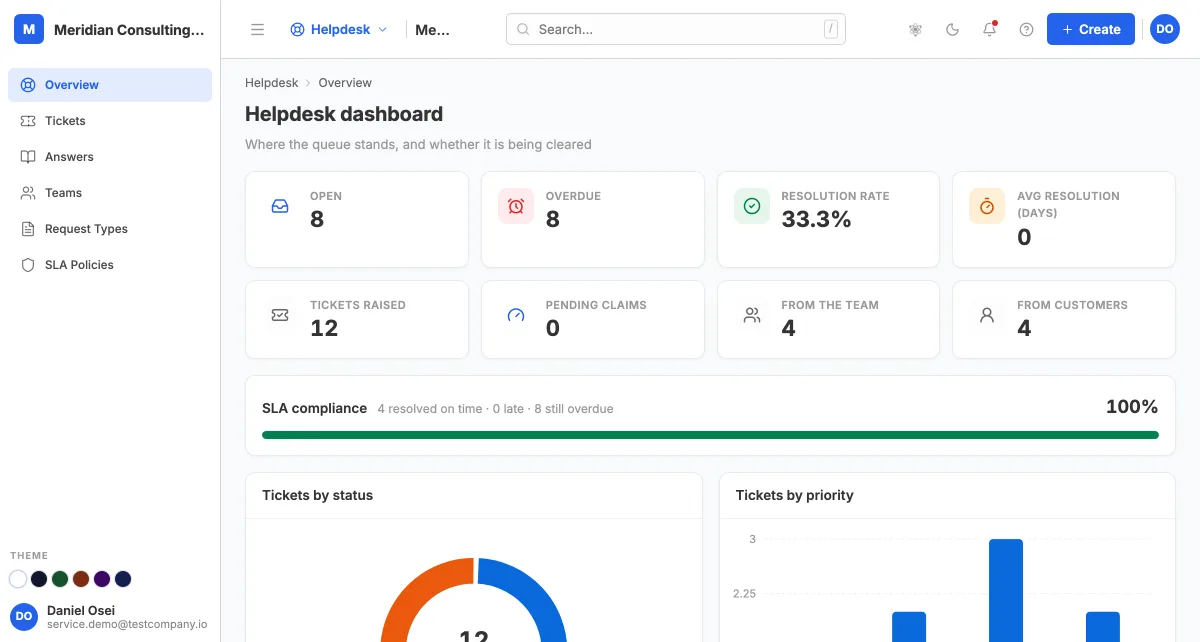
Teams own queues
Each team has an email alias, default assignee, default SLA and a stage pipeline you can rename and reorder.
Request types set the numbering
IT-0001, BILL-0001: each type has a prefix, who may raise it and which team picks it up.
SLA policies matched by specificity
Team plus priority beats team only, which beats priority only, which beats organisation-wide. A ticket snapshots its policy, so later edits never move existing deadlines.
Tickets from anyone, on any channel
Raised by a customer or a colleague, via web, portal, email, phone or chat, with priority, a needed-by date and an initial reply that stops the first-response clock.
Public reply or internal note
Public replies reach the requester by email; internal notes stay with the team. Status, priority and assignees save instantly.
Claim a ticket
Ask the current assignee to hand a ticket over; the hub lists claims to review.
Answers
A searchable FAQ library in categories, with tags, for consistent replies.
In the module: Overview · Tickets · Answers · Teams · Request Types · SLA Policies
People, time, pay and hiring in one module
From the employee’s own My Self pages to payroll that posts to the ledger, recruitment with a public careers page, and performance reviews.
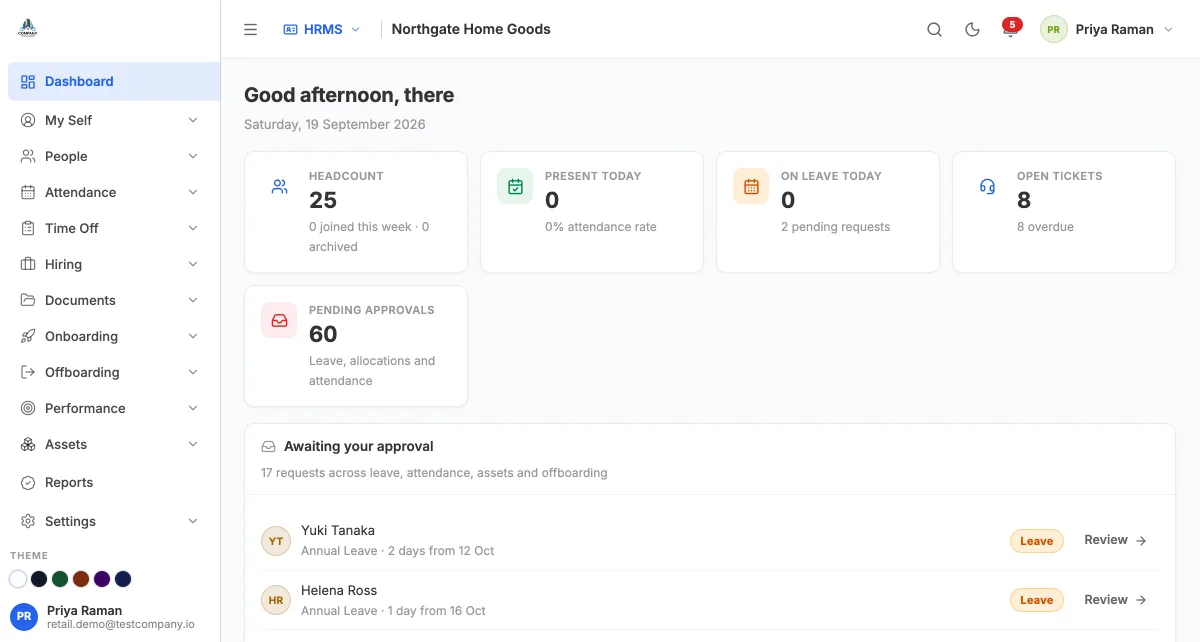
My Self
Leave balances, pay statements, check in and check out, leave requests, documents and objectives for the signed-in person.
People
A directory with filters and grouping, an organisation chart, schedule requests, rotating work schedules, policies and disciplinary records, and a profile with work history and bank details.
Attendance
Punch log, validation by managers, attendance requests, daily and monthly summaries, late and early exceptions, timesheets by task, and time policies with grace windows.
Time off
Leave types with paid, unpaid or partly paid rules, caps, accrual and reset, carry-forward and required attachments; allocations, balances, comp time, blackout dates and holiday calendars; multi-approver rules.
Payroll that posts
Contracts with wage type and pay frequency, allowances and deductions each bound to an account, tax withholding by filing status or by a statutory country pack (Nepal: SSF, CIT, festival allowance and tax deducted at source; US federal: W-4 withholding, Social Security, Medicare and FUTA) with its rates entered and confirmed per tax year, statements moving Draft → Confirmed → Paid with ledger entries at each step, and loans, advances and reimbursements deducted automatically.
Hiring
Job openings published to a public careers page, application questions, a candidate pipeline by stage, interviews, ratings, rejection reasons and a talent pool.
Onboarding and offboarding
Task pipelines for new hires, with a self-service portal, and exit processes with notice periods, handover and asset return.
Performance, assets and documents
Objectives and key results, 360 feedback cycles, one-to-ones and bonus points; company equipment requests, allocations and returns; employee documents and document requests.
Seven HR reports
Employee, attendance, leave, payroll, asset, recruitment and performance, each with period presets, grouping, a chart and an export.
In the module: Dashboard · My Self · People · Attendance · Time Off · Payroll · Hiring · Documents · Onboarding · Offboarding · Performance · Assets · Reports · Settings
Read the guide: Chapter 17 · HRMS — people, time, pay and hiring
Leads, accounts, opportunities and forecasts
Sales before there is anything to invoice: capture, qualify, work the pipeline, run campaigns, and forecast against quota.
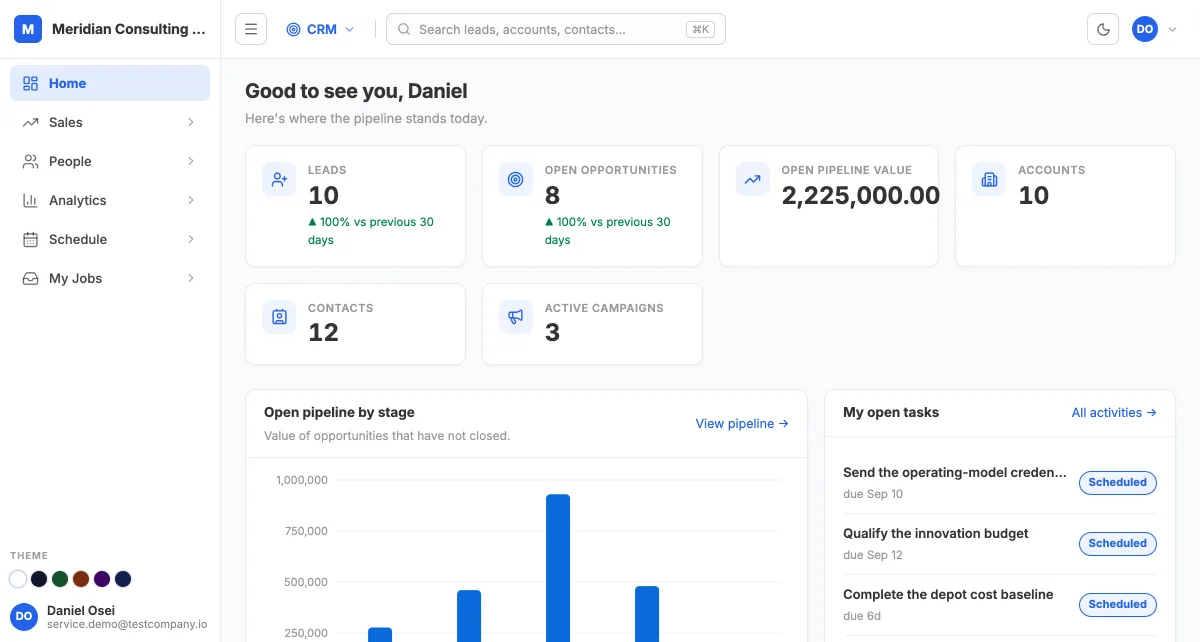
Leads that arrive by themselves
Lead capture forms and email-to-lead feed the list, assignment rules route them, and scoring rules rank them.
Convert in one step
A qualified lead becomes an account, a contact and, if you name it, an opportunity, all linked.
Opportunities by stage and value
Amount, probability, expected revenue and close date; a kanban to drag deals between stages; contact roles, teams and splits per deal.
Campaigns with results
Type, dates and budget, the leads and opportunities attributed, and the revenue they returned. Email the members, with an unsubscribe link in every message and bounced addresses skipped next time.
Forecast against quota
Pipeline by stage weighted by probability, beside targets per owner and period.
Schedule and bookings
A calendar, activities linked to any record, calls from connected providers, cadences that create each follow-up on their own and branch on how the last one went, and public booking pages built from your business hours.
Review and approval jobs
Discounts above a threshold or deals moving to Closed won can be routed to reviewers before they proceed.
Reports, dashboards and fifty settings screens
Saved reports in folders, dashboards built from them, and configuration for roles, stages, scoring, automation, mail, working time and data import.
In the module: Home · Sales · People · Analytics · Schedule · My Jobs
Read the guide: Chapter 18 · CRM — leads, accounts, opportunities and forecasting
Let customers see and pay what they owe
A sign-in of their own for invoices, payments and statements, and one-off payment pages for a single invoice, both carrying your branding.
Portal access in one switch
Turn it on for a customer, or for an individual contact person, and they receive an activation link. Resend or revoke from the customer record.
Overview, invoices, payments, statement
Outstanding, overdue and open invoices with tags; every invoice with its items and amount due; every payment; and the running statement from opening to closing balance.
Payment links
A public page for one invoice with your logo, the amount due, the summary and a Pay button that opens a card checkout. Payment received is recorded on the invoice and a receipt emailed.
Powered by Stripe Connect
Online payment needs Stripe connected in Settings; without it the pages still show the invoice and invite the customer to contact you.
Two more public pages
A careers page where candidates apply with no account, and an onboarding portal where new hires complete their tasks before day one.
Read the guide: Chapter 21 · The Customer Portal and payment pages
Shape it to the organisation, and keep it locked down
Companies, branding, users and roles, two-factor, email, document defaults, numbering, accounting rules, dimensions and the AI assistant, in one Settings module with a searchable rail.
Branding
Your logo on PDFs, emails, the sign-in page, the sidebar and the portal; an app colour scheme with presets that preview live.
Several companies, one sign-in
Each company keeps its own books, currency, chart, tax registration and fiscal year; add one from Settings and switch from the top bar. One subscription covers 1, 10, 30 or unlimited companies by plan, and someone invited to one company sees only that company. A parent and the companies it owns form a group with a consolidated balance sheet, P&L and trial balance: one column per company, translated into the group currency the IAS 21 way, with a translation reserve and drill-down into each company’s ledger. An invoice to a customer standing for another company gives that company a draft bill for the same total, reconciled pair by pair; journals mirror the same way. Each period’s eliminations, balances, trading, the parent’s investment against equity at acquisition with goodwill, and unrealised profit in stock, are proposed for a person to confirm, which closes the period; non-controlling interests take their share, and a consolidated cash flow shows the effect of exchange rates on cash.
Users and roles
Invites confirmed with a code to your own email and valid for 24 hours; predefined roles on every plan and custom roles with permissions per module and subject.
Two-factor and sessions
Authenticator codes with single-use recovery codes, and an automatic sign-out after 15 minutes of inactivity.
Email, follow-ups and reminders
Every outgoing email as an editable template with placeholders and preview, sending from your own SMTP domain, automated follow-ups relative to the due date, daily reminders and per-user notification preferences.
PDF template editor
Classic, Modern, Compact and Document layouts, paper size, orientation, fonts, colours, header and footer, and which fields and columns print, all with a live preview; a default per organisation, per customer or per document.
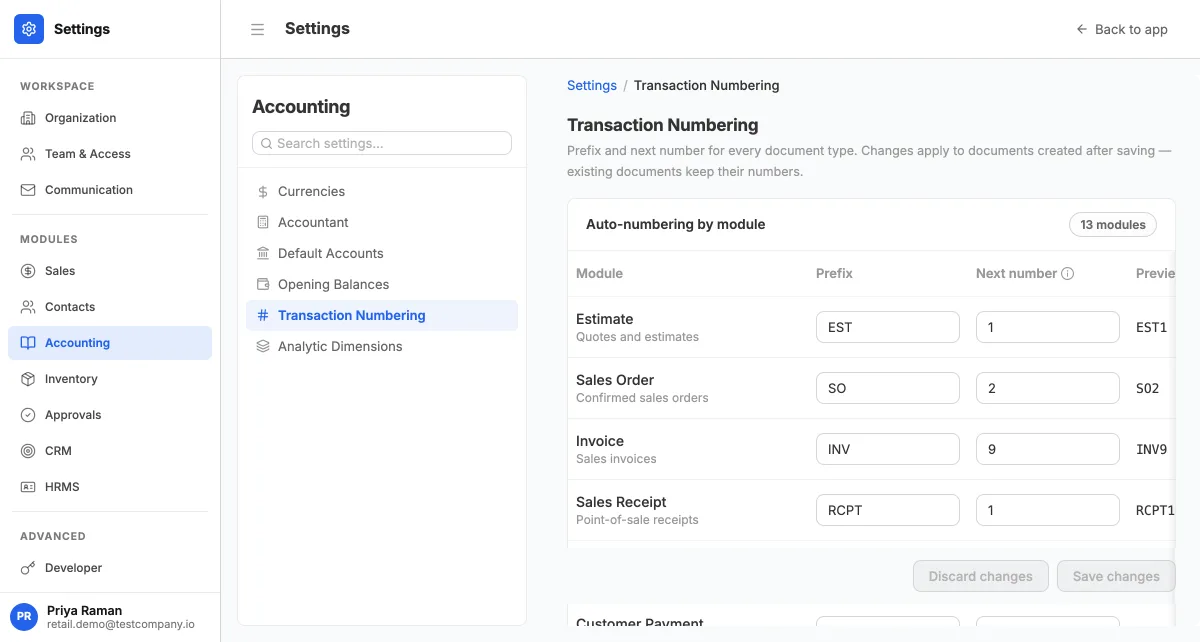
Numbering and defaults
Prefix and next number for every document type, default text and behaviour per document, payment terms and accepted cards.
Currencies and dimensions
Every currency you transact in, with a daily rate feed, Nepal Rastra Bank’s official buying and selling rates, the ECB’s reference rates, an open feed for the rest, and the NPR–INR peg, prefilling each document’s rate by its date and side, a typed rate always winning, and gains and losses posted through their roles; analytic dimensions with required, hidden and auto-fill rules that split amounts by percentage.
Notifications and issue reporting
A live bell for approvals, reminders, payments and assignments, and Report an issue with a status you can follow. No advertising trackers anywhere in the product.
Connected where it counts, and a clear way in
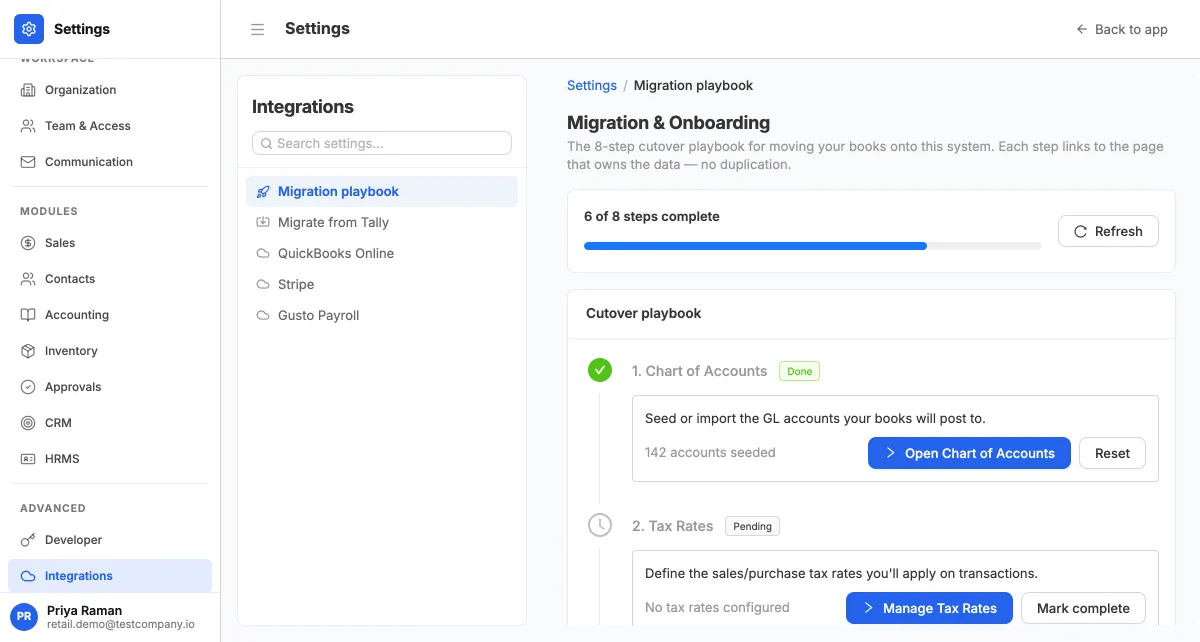
Bank feeds, card payments, US payroll, migration from QuickBooks Online and Tally, and an eight-step cutover playbook.
Plaid
Live bank and credit-card feeds, with sync, pause, resume and disconnect per account.
Stripe
Stripe Connect onboarding for payment links and the portal; choose the bank account that receives payouts and each payout posts bank, fees and clearing so the feed reconciles.
Gusto
Each completed payroll posts a balanced journal; LedgersLab never runs payroll or touches filing, it only reads finished runs. Pay runs are listed under Accounting → Payroll.
QuickBooks Online
Connect, map each QuickBooks account to yours, reconcile the trial balance at your cutover date account by account, then lock the books or generate the opening balance journal.
Tally
Upload the Master.xml export, preview ledgers mapped to account types and units with any problems flagged, migrate, and undo a run if needed.
Migration playbook
Chart of accounts, tax rates, contacts, items, opening trial balance, open AR and AP, connect bank and first reconciliation, each ticked off automatically as the data exists.
Opening balances and bulk import
A three-step migration for trial balance and contact balances, then historical documents from an Excel template with a validating preview.
Wondering what's in which plan? Compare plans on the pricing page →
Start with three months free
No card required. Import your history in an afternoon, and your data stays yours to export any time.